Track data hubs are collections of external tracks that can be added to the UCSC Genome Browser. Click Connect to attach a hub and redirect to the assembly gateway page. Hub tracks will then show up in the hub's own blue bar track group under the browser graphic. For more information, including where to host your track hub, see our User's Guide.
Track Hubs are created and maintained by external sources. UCSC is not responsible for their content.
Create your own hub
For information on making track hubs, see the following pages:
You may also contact us if you have any issues or questions on hub development.
Check a hub for errors
Load Example URL
Use the URL bar above to check a hub for errors. This will validate the hub's configuration files, including hub.txt, genomes.txt and trackDb.txt. It will also present a hierarchical tree of tracks with any errors in red. A hub with no errors still shows the tree which can be used to explore the track hierarchy. Hub error checking will always refresh the files and never use our remote file cache (see below).
Enable Genome Browser debugging modes
These apply to all connected hubs. By default, caching is activated and track load times are not shown, but you can change these settings while developing your hub:
API key
You are not logged in. Please Login now, then this page will show the API key.
New feature!
We're excited to introduce this new hosting space.
We would love to hear your feedback — please
contact us and let us know what you think!
Upload your track hub files to UCSC and view your bigBed, bigWig,
BAM, VCF, and other supported files -- no need to rely on third-party hosting services
such as Dropbox, Google Drive, or AWS.
Each account is allocated 10 GB of storage. While we strive to maintain uninterrupted
access, please maintain your own backups. Data persistence over the long term
is not guaranteed. To request additional storage space, please
contact us.
How to use Hub Space
There are three primary ways to upload your files:
Upload an individual set of binary-indexed files for immediate visualization.
If you have multiple files to upload, Hub Space allows batch uploads by selecting
all files at once from your computer.
Upload an entire track hub along with all supporting files (hub.txt,
bigWig, bigBed, etc.) to visualize the hub.
To update an existing track hub on Hub Space, you will have to enter the hub's name
again. Otherwise, Hub Space assumes that you are trying to create a new hub.
If a hub.txt file is not provided when uploading the data files, a hub.txt file
is automatically generated. The generated hub.txt file is configured with the
useOneFile
trackDb setting, and as a result, each hub is limited to a single genome assembly.
Editing the generated hub.txt file is not yet supported.
To customize the hub configuration or data display, replace the generated
hub.txt file with your own version after uploading the data files.
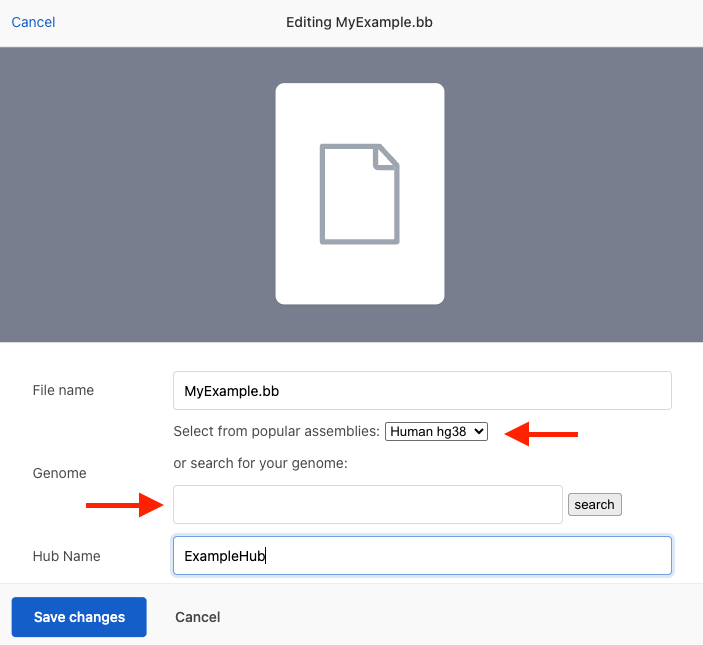
By default, your most recently used genome assembly is selected after choosing which
files to upload. Use the popular assemblies drop-down menu or the search
box to select another genome assembly.
Select files for more options
selected.
For information on making track hubs, see the following pages:
 US Server